Kindle Beginner’s Guide
Estela Young
Since many books aren’t available on WeChat Reading, I decided to use a Kindle + e‑books to solve the problem myself. I’ve enabled “instant noodles cover” (泡面盖) and am studying it ...
Since many books aren’t available on WeChat Reading, I decided to use a Kindle + e‑books to solve the problem myself. I’ve enabled “instant noodles cover” (泡面盖) and am studying it seriously. I’m recording the steps here in case they’re helpful.
1 Download Books
Common e‑book formats
- PDF: the most common format on the market
- EPUB: Apple’s format, works with Apple Books
- MOBI: Android format, works with Kindle
- AZW3: Kindle’s native format
- Others such as CAJ, DOC, TXT, HTML, etc.
Conversion tools
- calibre 📮 https://calibre-ebook.com – no VPN needed, free download, no in‑app purchases, handles all the format conversions you’ll need.
- 迅捷转换器 – no VPN needed, free download with optional paid features, supports conversion among CAJ, TXT, DOC, PDF, HTML and more.
e‑book sites
- 鸠摩搜书 📮 https://www.jiumodiary.com/
- Project Gutenberg 📮 https://gutenberg.org/
- 熊猫搜书 📮 https://xmsoushu.com/#/
- 书享家 📮 http://shuxiangjia.cn – no VPN needed (as of 24.05.05 it’s no longer reachable)
- BookSC 📮 https://booksc.org – requires 🪜
- Library Genesis 📮 www.libgen.is – requires 🪜, many books in less‑common languages
- Wikibooks 📮 https://www.wikibooks.org – requires 🪜
- Anna’s Archive 📮 https://zh.annas-archive.org/ – requires 🪜
Other sources (not yet explored, listed for completeness)
- Getfreeebooks
- HathiTrust Digital Library
- Bookyards
- PLANET EBOOK
- 苦瓜书盘
2 Transfer Books
Local import
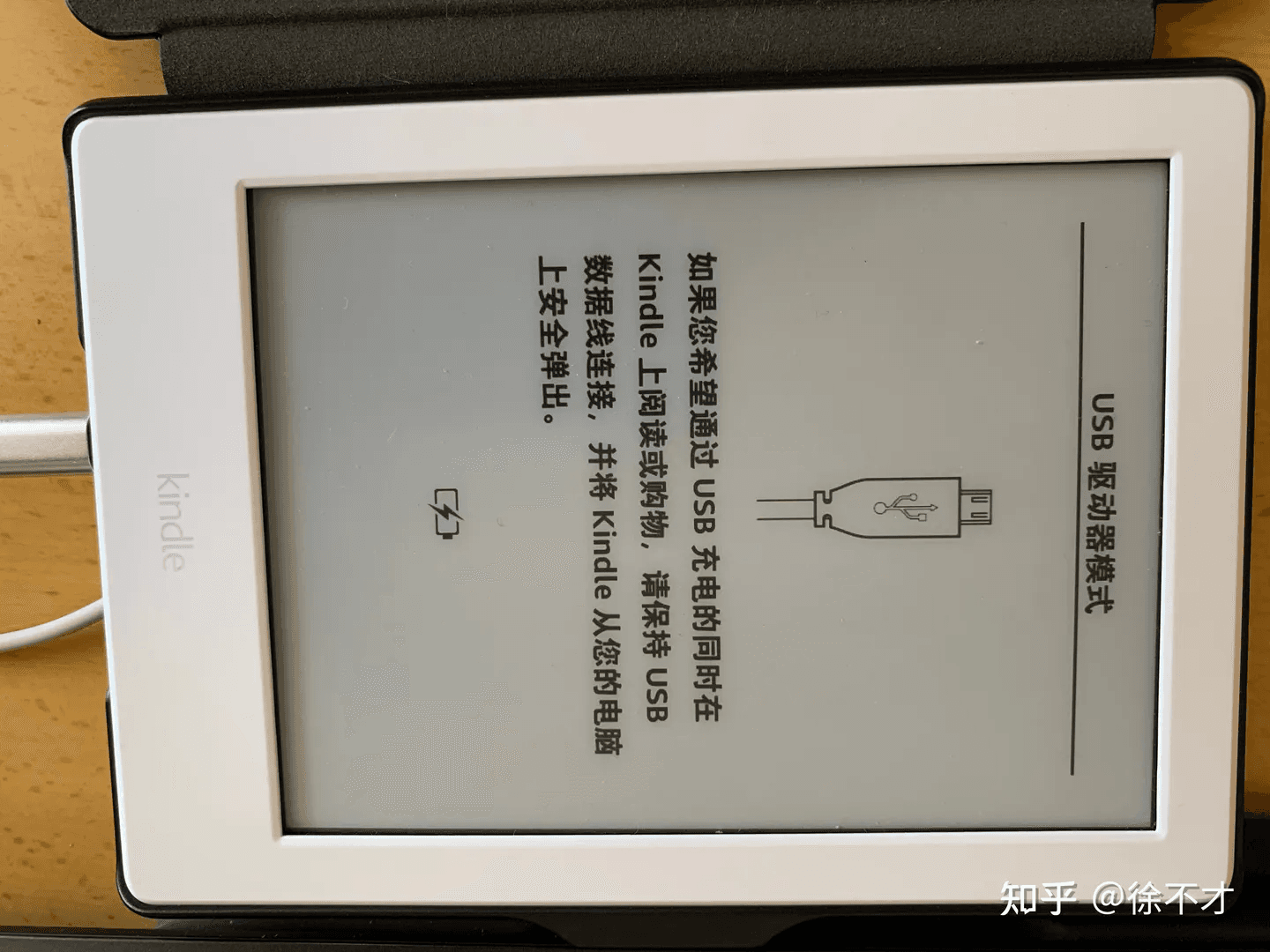
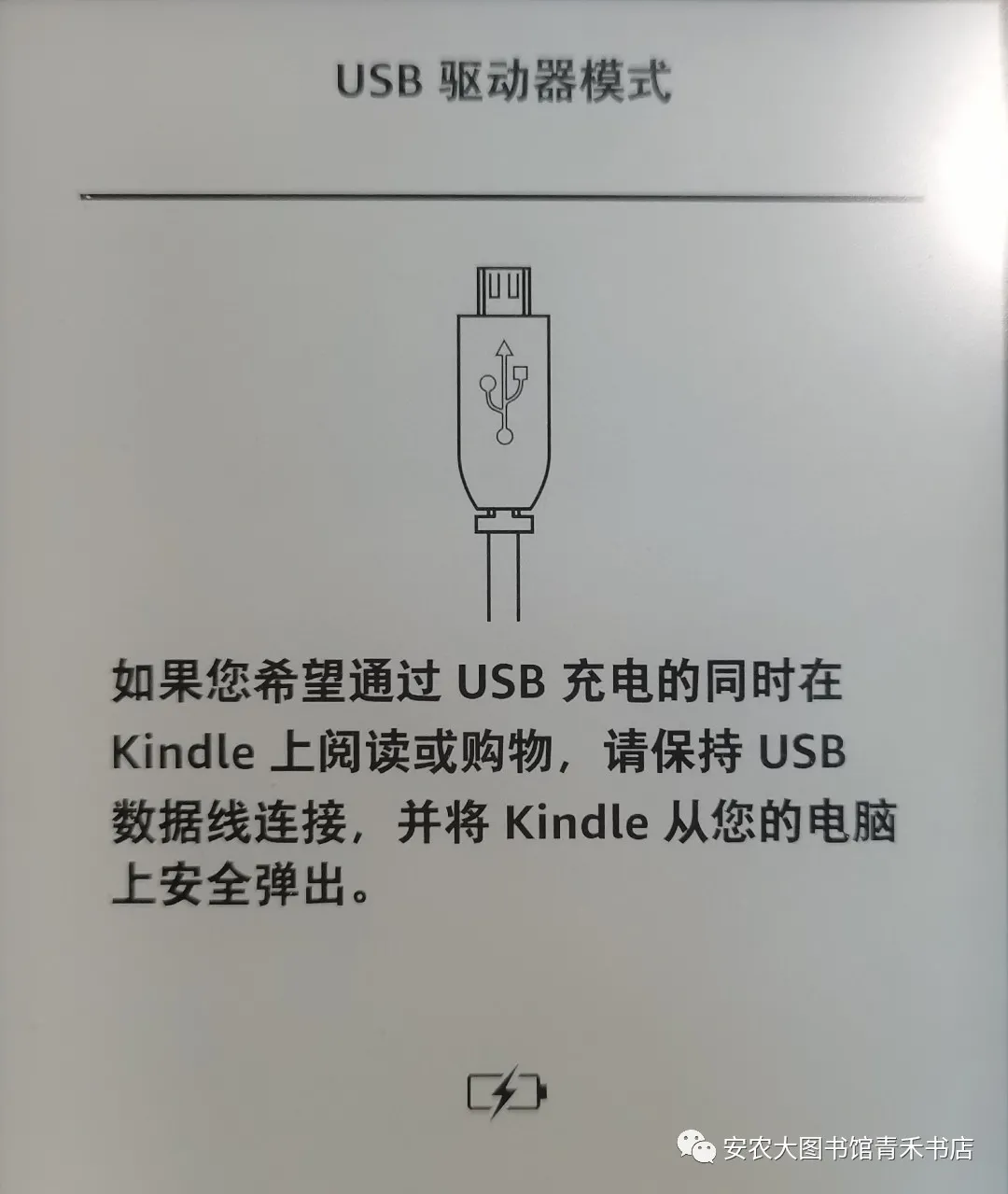
Connect the Kindle to your computer with a USB cable and copy the e‑book files into the Kindle’s documents folder.
If the Kindle doesn’t show up after plugging in, try a different cable—this has happened to me many times. Search your drawers for another cable!
Email delivery
Send the file to your Kindle’s email address (found in Settings).
Make sure the sending address is added as a trusted email in your Amazon account. See the tutorial for details.
Other methods
- https://easychuan.cn – requires a paid pass
3 Reading Books
The first time I used a Kindle I was completely confused, but after a bit of practice it became manageable.
- Unlock: press the power button.
- Open a book: tap its cover to start reading.
Once inside a book:
- Tap the left or right side of the screen to turn pages.
- Tap the top area to bring up the menu, where you can exit reading, adjust font, view the table of contents (jump pages), add notes/highlights, and search.
There’s also a feature I haven’t figured out yet; I’ll update this once I explore it.
Quick gestures
- Change font size: swipe two fingers from left to right.
- Quick page jump: swipe up from the bottom of the screen.
- Pull down: access quick settings (turn off, sync, all settings, adjust brightness).
Appendix: Reference Articles
- US‑region registration guide – read when you have time; I haven’t done it yet.
Originally written by Estela Young and published in Chinese on 一只产品汪的自白. Translated and edited for DriftSeas with permission.